Showing posts with label Phone. Show all posts

Saturday, July 29, 2017

How to send a web page from your Android phone to your Windows 10 PC?

In the last Windows 10 Build, Microsoft introduced a nice feature to link your Android phone to your computer and once that link is established, you will be able to send a web page from your phone to your bigger screen computer. In this article, I will show you how to set it up. This feature is currently available to Windows Insiders only for testing.

Once you've installed the latest update, proceed to Settings - you can do so in the Start Menu or through the Action  Center on the right. You will notice right away that Microsoft added a new setting called "Phone". Go ahead and click on that to begin the link process. For the time being, you can only link an Android phone, with support for iOS coming later.


Next click "Add a phone" to open the "Link your phone and PC" window where you will type in your phone number and select your country, then click the Send button.


Shortly after clicking that Send button, you will receive a SMS on your phone with a link. Opening the link takes you to Google Play Store to download the "Microsoft Apps" app. Once installed, open the app and you will see a tile addressed to Windows Insiders with a "Try it now" button. Tap to get started on your phone and go through a quick tutorial.

Hit the "Try it now" button to launch Chrome which takes you to the Surface devices website - Saw what you did there Microsoft. Tap Share in Chrome and select "Continue on PC". You will be offered two choices: "Continue now" and "Continue later". Tapping the former will immediately open the web page on your computer and the latter option will add the link in the Action Center on your computer for you to access later at your convenience. 
You will be asked to sign in with your Microsoft account at this point.  Whichever option you choose, the web site will open in Microsoft Edge browser on your PC and there is nothing wrong with that. Edge is actually better for reading than Chrome thanks to the "Reading View".


That's it. Now you have linked your Android phone to your Windows 10 computer. This is a first release of this functionality and I like it for its simplicity and I hope Microsoft keeps it that way.

Have you linked your phone to your Windows 10 PC yet? What do you think of it? Share your thoughts in the comments below.

Source: Windows Blog

Saturday, July 30, 2016

Share your content through social networks & more in one click with UniShare for Windows.


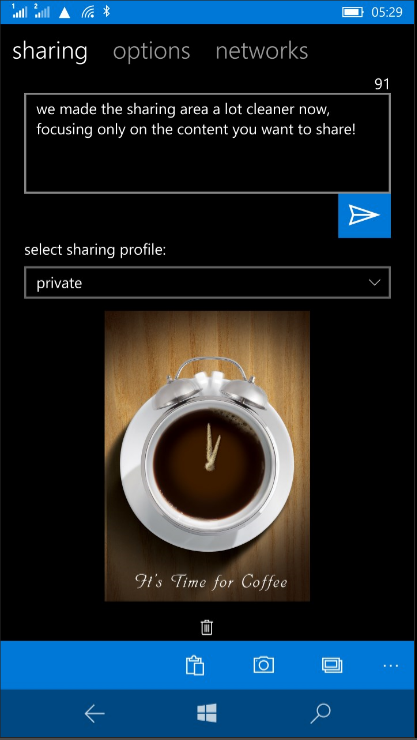
Windows Phone and Windows 10 Mobile like all operating systems let us share just about anything to social networks, to messaging apps etc. But the annoying thing is that these modern OSs don't bundle a simple thing like sharing to all these platform in a click, a kind of share-once-to-all. We all have a presence on more than one social network. Every time I update this blog, it used to be a pain to share my posts to my multiple social accounts. Thanks to UniShare, sharing in one click makes life a lot easier.


UniShare is a Universal Windows app that's available free on Windows PC and phone and is a simple and powerful app. In its basic free form, UniShare allows you to share content to Facebook, Twitter and LinkedIn in one click. All you have to do is safely add your accounts into the app. The app itself will appear in the sharing options throughout Windows and when selected, lets you share content through the three social platforms mentioned above in one click. That's for the free version.

UniShare also comes in Pro version with the following additional features and support for more networks:

  • Twitter - Up to 3 accounts
  • LinkedIn
  • Facebook - personal accounts plus pages you are admin/contributor
  • Tumblr
  • Pocket
  • Geeklist
  • Path
  • Slack
  • Choose from a broad range of picture upload packages - from 5 pics for free up to unlimited)

I strongly recommend you download UniShare in the Windows Store and enjoy the ability to share content to all your networks, email, messaging and other supported apps in a few clicks. And it is continuously being updated. See the full change log below:
- more languages (German, Italian, Dutch, Norwegian) 
- added link to translator registration page 
- mention suggestion search for Facebook no longer needs upper case letters 
- Import/Export of Sharing Profiles fixed, no longer throws errors 
- adding a picture from camera/library or pasting from clipboard is now also available in Sharing View 
- better handling of situations without internet connection 
- fixed sharing to external apps 
- added leet conversion extra 
- added Klingon translation extra (Pro) 
- added Giphy extra 
- lots of bug fixes